Skip to online beautify

Online photo retouching · AI portrait retouching

AI Portrait Retouching
Naturally you.

Smooth skin, brighten skin tone, and improve portrait lighting.
Upload a photo for one-tap beautify, or fine-tune as needed.

Or drag an image hereJPG / PNG / WebP · Max 20 MB

No photo? Try
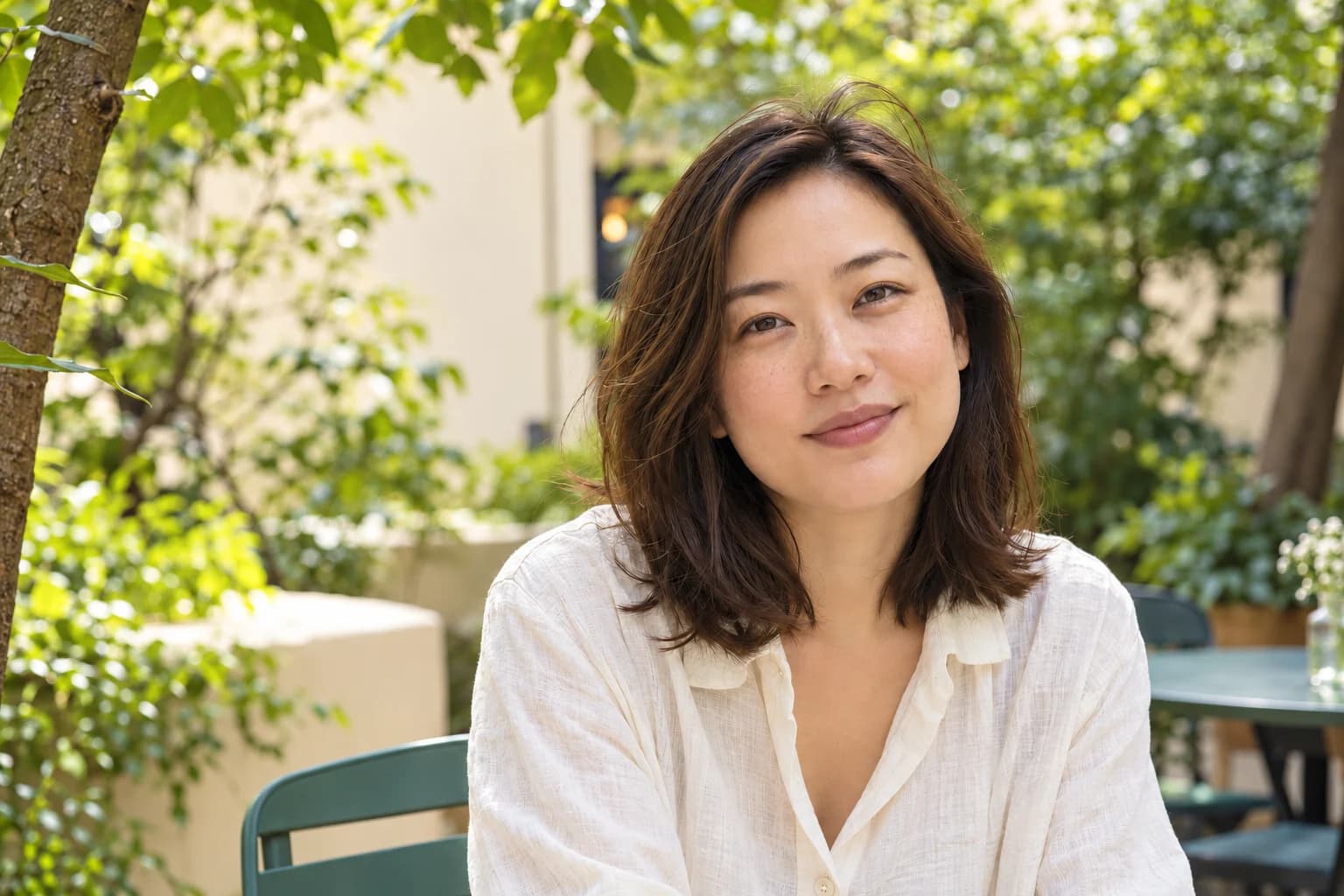
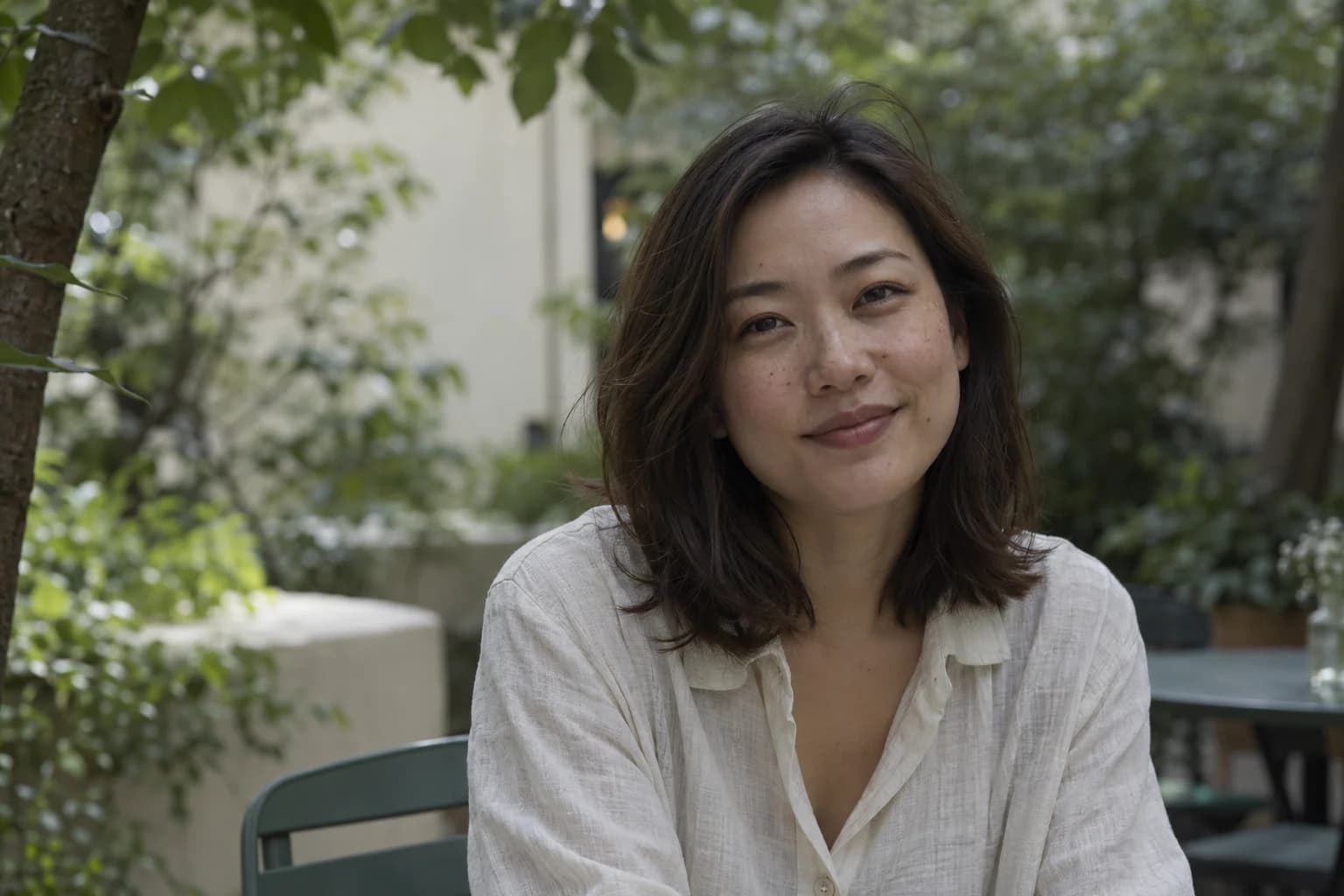
Portrait beautify before and after
AI portrait retouching example with natural skin smoothing and brightened skin tone, enhanced preview
AI portrait retouching example with natural skin smoothing and brightened skin tone, original preview

AI beautify preview · keeps you looking natural

Use it online, no install neededDescribe what you want, no settings to tweakDownload the result or keep editing

More than beautify, every photo can shine

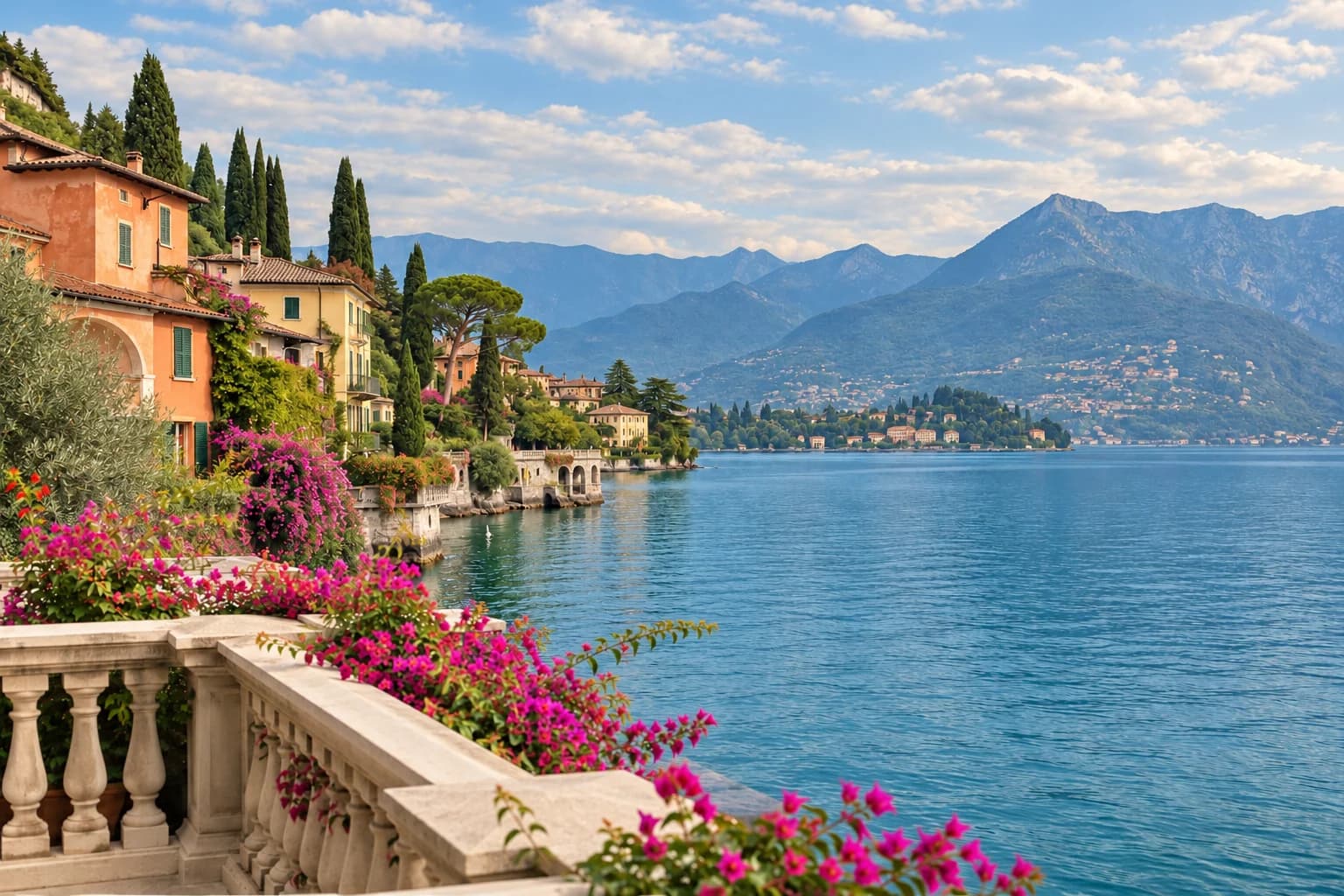
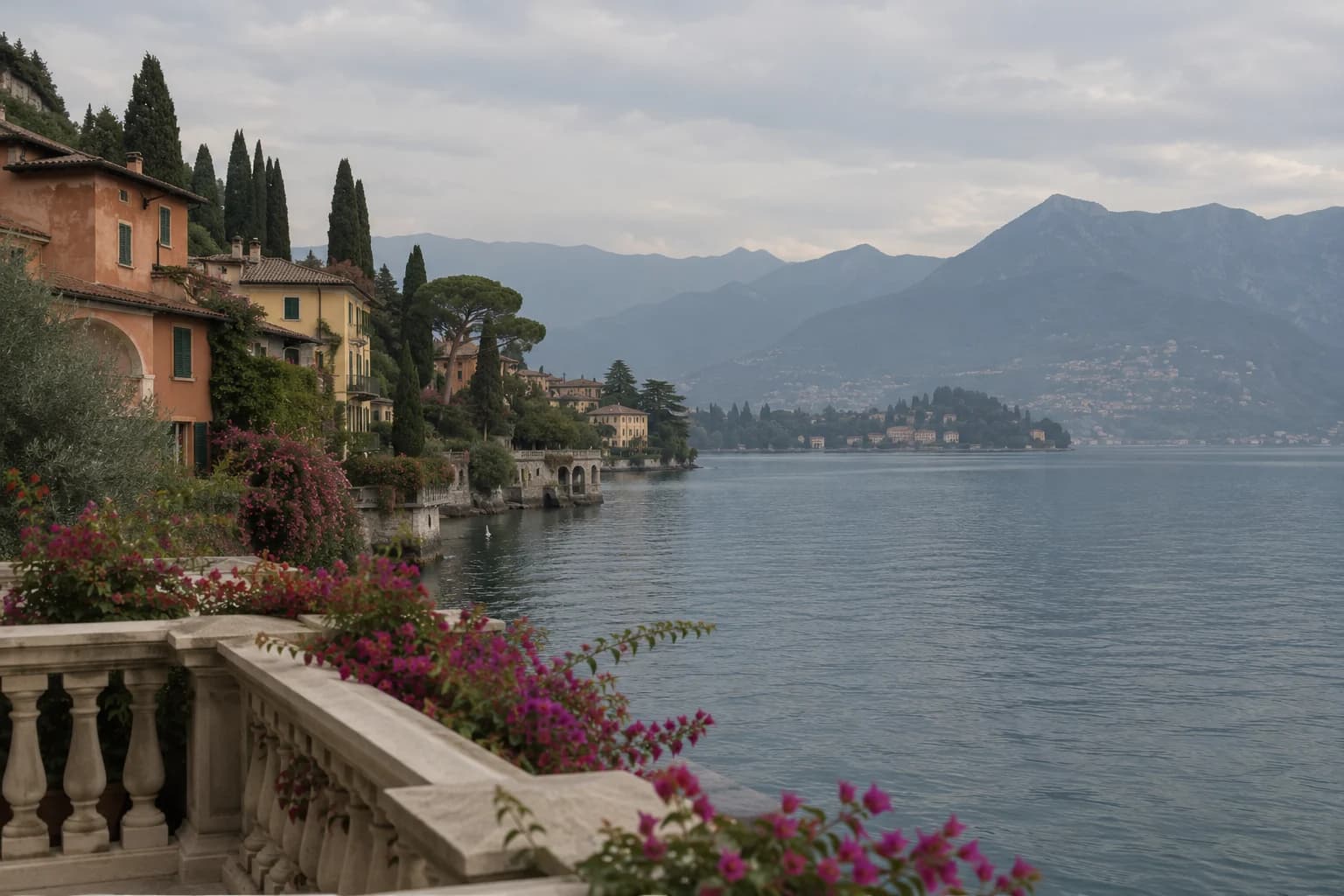
AI portrait retouching, before and after

From a portrait to a travel scene you can't bear to delete.

Travel photo of a lakeside town, flowers and distant mountains, enhanced preview
Travel photo of a lakeside town, flowers and distant mountains, original preview

Light and color

Give the beautiful scenery
back to your album.

Shot gray on a cloudy day or dark against the light? Describe the look you want, make the light brighter and colors clearer, and keep the mood of the moment.

Brighten the image and make colors naturally clear,
keeping the original composition.

This page shows AI-generated previews. Actual results vary with the original image and your request.

No complex editing skills needed

How to retouch portraits with AI

  1. 01

    Upload a photo you like

    Pick from your album or drag it in. A clear original image gives more natural results.

  2. 02

    One-tap beautify, or describe what you want

    Start right away, or add ideas like "keep freckles" or "a bit warmer" to get closer to what you want.

  3. 03

    Review and download

    View the enhanced image in the workspace. Not quite right? Keep describing what you'd like to adjust.

Great photos deserve a little more love

Make your next photo naturally stand out.

Before you start, you may want to know

AI portrait retouching FAQ

Less fuss over editing,
more joy in sharing.

Can I try AI one-click retouching for free?

Yes. New users get free credits on sign-up, then sign in to try online photo retouching with credits. Browsing examples, choosing images and writing requests won't trigger generation; the task is submitted only after you click to start beautifying.

Can AI retouching smooth skin and brighten skin tone?

After uploading a portrait, you can request things like "natural skin smoothing, brighten skin tone, keep skin texture," or specify adjusting only the lighting or softening small blemishes. Photo retouching suits selfies, avatars and everyday portraits; results depend on the original image and your description.

Will portrait retouching change my facial features?

By default it focuses on natural brightening and improving lighting and color while keeping facial features and skin texture. You can also add requests like "keep freckles" or "no skin smoothing." AI generation may alter details, so check before downloading.

Besides portraits, what other images can I beautify?

Travel scenery, everyday snapshots, food and product photos all work. After uploading, describe the effect you want, such as "brighten the shadows," "make colors clearer" or "keep the product's original colors," and AI adjusts to your request.

Do I need to download software for online retouching? What photo formats are supported?

No software download needed; upload photos from a computer or mobile browser. Supports JPG, PNG and WebP, up to 20 MB each. Upload clear originals where possible; very dark or badly blurred photos may not recover all details.

What's the difference between one-click beautify and image upscaling?

One-click beautify focuses on skin tone, lighting, color and overall look; image upscaling focuses on blur and sharpness. If you mainly want to improve a low-resolution image, use the "Image Upscaler" tool.

Can I keep editing and download after beautifying?

Yes. After submitting, view the result in the workspace and download it when satisfied. To adjust further, keep describing requests like "softer lighting" or "lower the saturation."